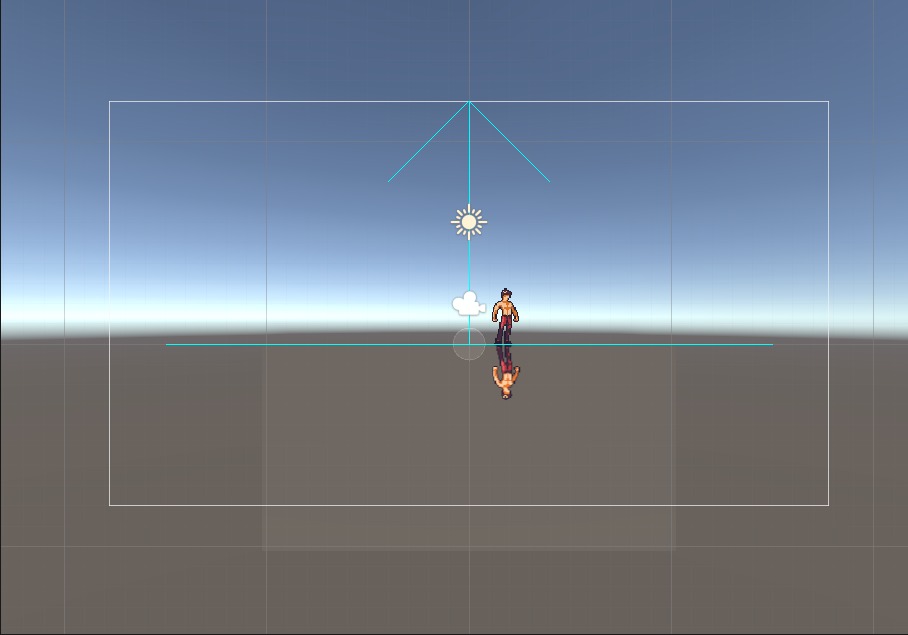
Add Reflections to a scene
Adding reflections to a scene with PIDI : 2D Reflections 4 is very easy and it can be done within minutes by following this small series of steps. First, let’s create a Reflection Renderer object in our scene by creating an empty object and adding the Reflection Renderer 2D component to it.
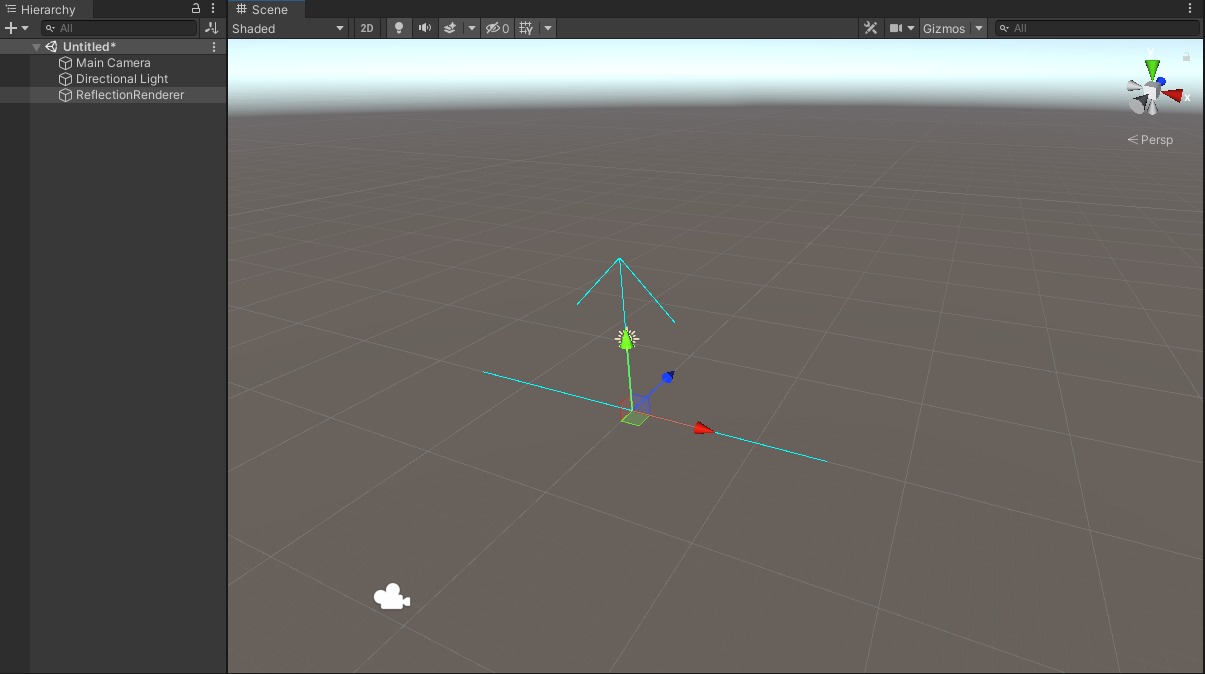
The 2D Reflection Renderer component has a useful gizmo that allows you to see the reflection line (the point from which all objects will be mirrored) and an arrow indicating the direction of the reflective surface. With PIDI – 2D Reflections you are not limited to reflective floors and water, you can also have reflective walls, ceilings and any other surfaces in all kinds of angles.
But right now, we will also need something to reflect, to see that everything is working as supposed to. In this case, we will add our character sprite included as part of the demos for the asset.
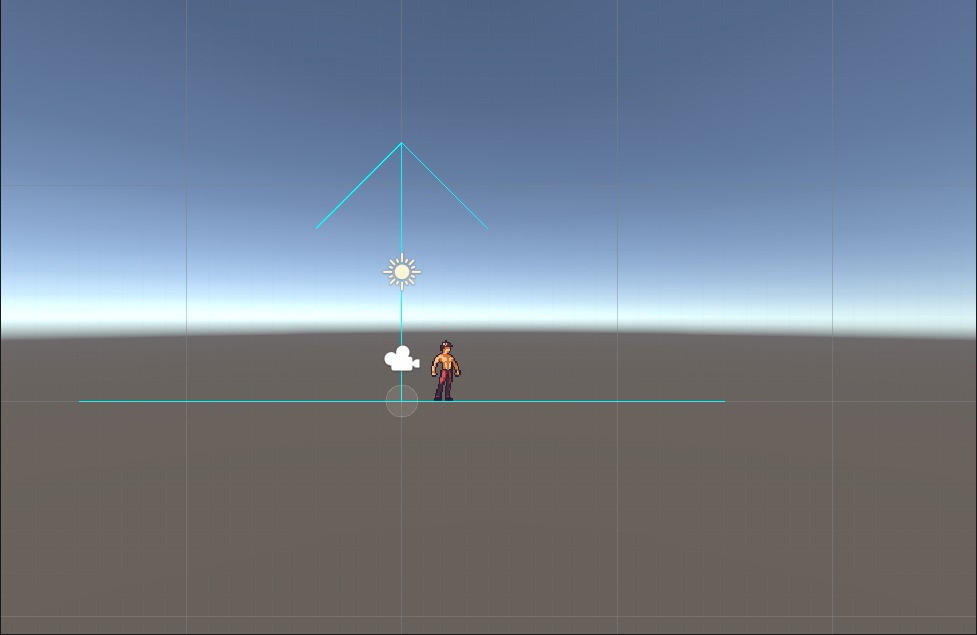
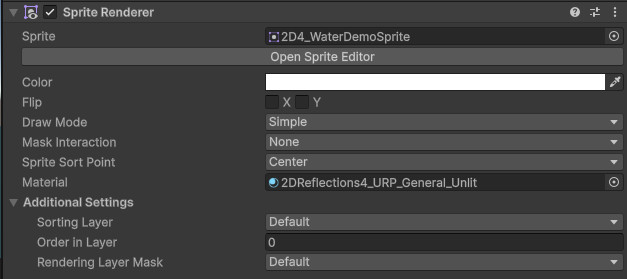
Then, we will create a new sprite object and assign a sprite to it. For this tutorial, we recommend adding the included 2D4_WaterDemoSprite as it has the pivot point placed already in the correct spot. We will also assign one of the reflective materials included with the asset, in this case, the 2DReflections4_URP_General_Unlit material
Now place this sprite and the Reflection Renderer in exactly the same position. We recommend making the Reflection Renderer a child of the sprite that will act as the reflective surface for best results.
Note: A reflection caster will adjust the origin position of the reflection to match its sprite’s pivot point. Reflective surfaces should, ideally, have their pivot point exactly where the reflection line will be. Otherwise, you will need to adjust the position of the Reflection Renderer manually to make them match the correct spot.
Finally, we will add the Reflection Caster 2D component to it and assign our Reflection Renderer to its Reflection Renderer slot. After doing this, the reflection will appear immediately on the screen. The Reflection may appear with a bright blue color, in which case you will need to adjust the Clear Flags setting on the Reflection renderer to either use a different color or match the camera’s Clear Flags.
After these simple steps, you should have a working 2D reflection.